Spreadsheets become stale immediately
The moment sprint dates, estimates, or assignees change in Jira, the copy outside Jira is already drifting away from the source of truth.
Most teams already have the raw inputs for sprint capacity planning inside Jira Cloud: a Scrum board, sprint dates, estimates, assignees, and a rough sense of team availability. The problem is that the signal is fragmented. This guide shows what a usable capacity-planning workflow in Jira needs, where spreadsheets break down, and how to keep demand vs capacity visible inside Jira project navigation.
Built around Jira Cloud, Jira Software Scrum boards, and the next planning conversation — not a heavyweight staffing suite.
It usually is not because Jira lacks data. It is because the planning signal gets rebuilt manually from too many surfaces.
The moment sprint dates, estimates, or assignees change in Jira, the copy outside Jira is already drifting away from the source of truth.
Unestimated or unassigned issues are easy to miss in manual planning, so the team walks into sprint planning without a clear confidence signal.
Teams often scan each sprint separately instead of seeing demand vs capacity across the next few sprints in one consistent view.
A practical setup is less about advanced forecasting and more about one explainable signal that the team can trust.
Before a sprint slips, the team should be able to answer a few simple questions without opening a spreadsheet:
These are the patterns that usually push teams back into manual planning.
If a meaningful part of the sprint has no estimate, demand looks artificially low and the team overstates available capacity.
Capacity becomes hard to derive when the sprint backlog is not attached to real people or a real team shape.
If the Jira board is not consistently configured for story points or a time-based estimate field, teams end up planning on counts or guesses.
When team capacity defaults and exceptions are only remembered verbally or in a spreadsheet, planning signal becomes hard to explain and audit.
The goal is not a black-box score. The goal is a fast, explainable demand-vs-capacity signal during planning.
That combination is usually enough for sprint planning, backlog refinement, and the last review before a sprint is committed.
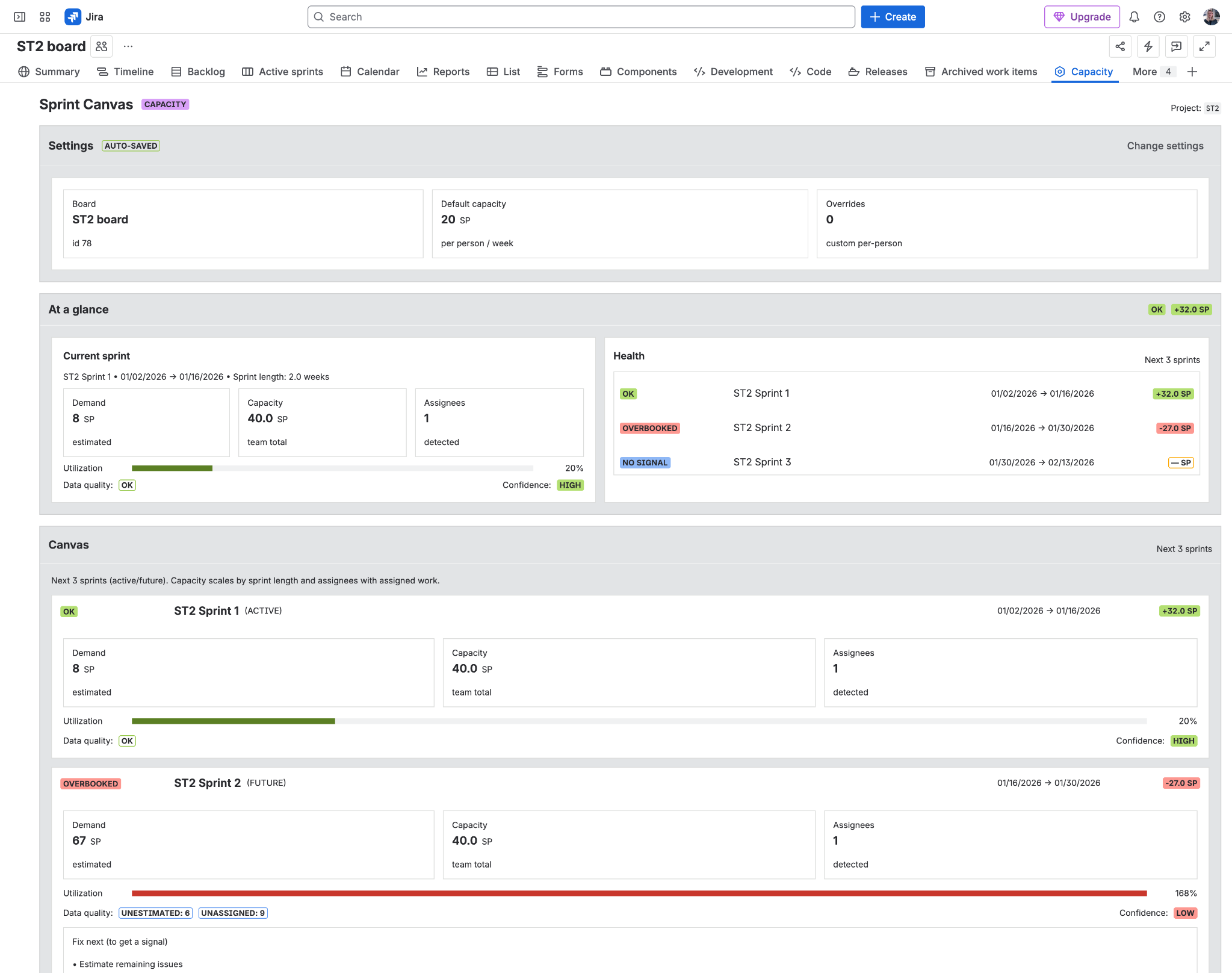
Sprint Canvas is a lightweight way to keep the signal inside Jira rather than moving planning into a separate spreadsheet or staffing tool.
The app adds a Capacity page directly to the Jira project, so the team stays in the same workspace it already uses for planning and delivery.
Select a Scrum board once and Sprint Canvas loads the active sprint plus the next two future sprints for a compact planning view.
Instead of hiding uncertainty, Sprint Canvas flags unestimated or unassigned work, board-estimation issues, and no-signal situations directly in the page.
The app reads the board configuration and surfaces the unit the board already uses, whether that is story points or time converted into hours for display.
Set a default weekly capacity once, then adjust only where a specific person needs a different assumption for the sprint horizon.
Built on Atlassian Forge with no external services, Sprint Canvas stores only the small project-level settings it needs for calculations.
Short answers for teams evaluating whether they can keep capacity planning inside Jira Cloud.
Yes, if your team keeps estimation, assignment, and board configuration clean enough to derive demand and capacity from a Scrum board. The missing piece is usually a clear in-Jira view across upcoming sprints rather than a lack of raw data.
Use the estimation method your Jira Software Scrum board is already configured to use. Story points work well for relative sizing. Time-based estimation works when teams prefer hours. Consistency matters more than the unit itself.
No. Sprint Canvas is intentionally narrower. It focuses on Jira project-level sprint capacity signal rather than portfolio-wide staffing, budgeting, or long-range resource allocation.
Start with the Sprint Canvas overview page, then use the documentation, support, and privacy policy pages if you need setup or policy details.
Start with the Sprint Canvas overview, check the Marketplace listing, and use the docs if you want the setup and calculation details before you install.
Need support, privacy, or security details first? Those pages stay live on monolyn.nl and link back to the product overview.