No single view across the next 3 sprints
Teams often scan sprint after sprint by hand to understand whether upcoming work is still within capacity.
See demand vs capacity across the next 3 sprints inside Jira project navigation. Sprint Canvas adds a Capacity page to Jira projects, surfaces utilization and health, and highlights unestimated or unassigned work before sprint planning drifts.
Built on Atlassian Forge. Minimal project-level configuration only. Works inside Jira project navigation.
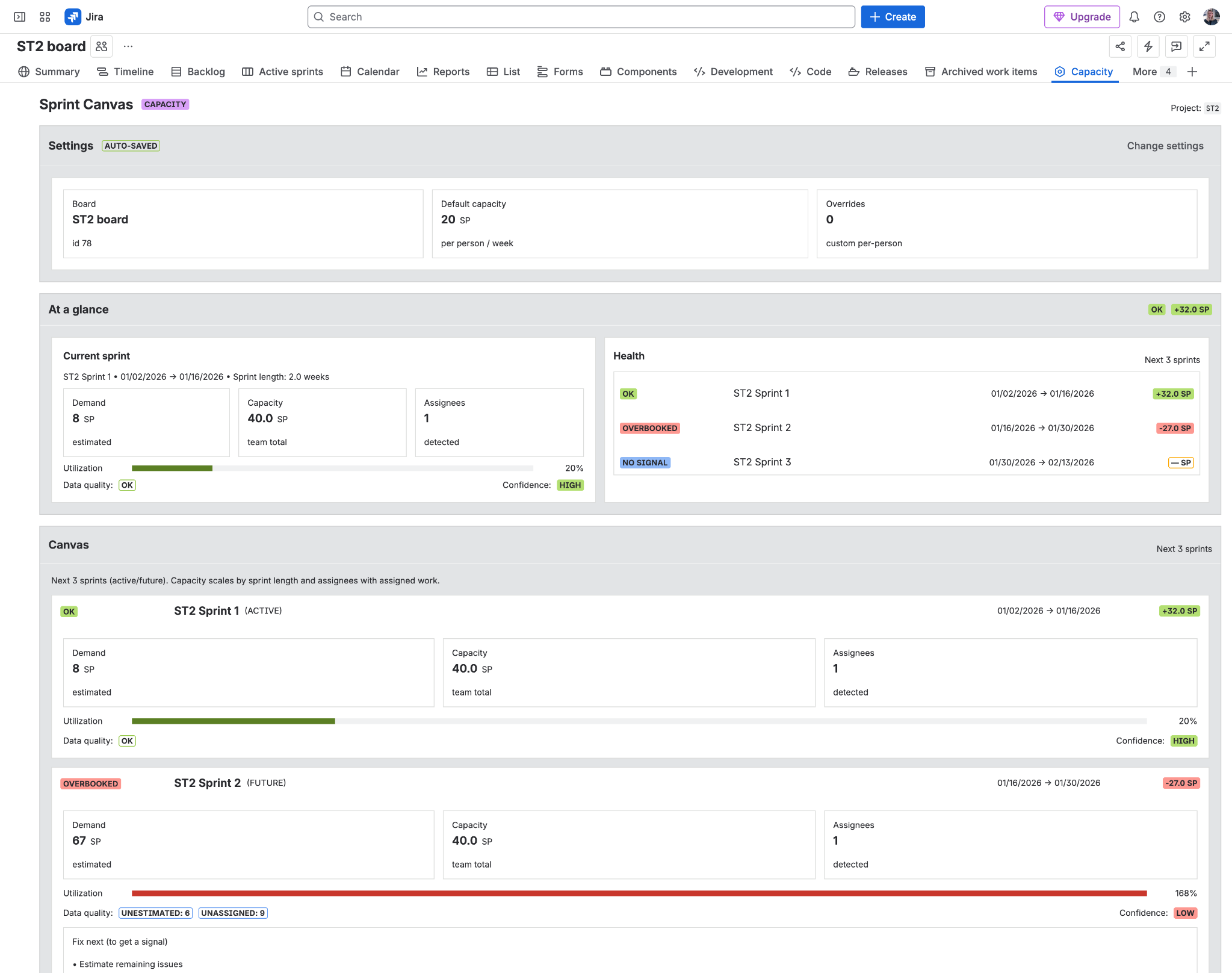
Jira already knows the board, sprint dates, assignees, and estimates — but planning signal still gets reconstructed manually.
Teams often scan sprint after sprint by hand to understand whether upcoming work is still within capacity.
Unestimated or unassigned work quietly weakens planning confidence, but the signal is rarely surfaced clearly enough inside Jira.
Many resource-planning tools aim at portfolio-wide staffing. Sprint Canvas stays focused on the Jira project page and the next planning conversation.
One project page, one selected Scrum board, and an explainable signal for the next planning conversation.
Open the Capacity page and compare current and future sprint demand against derived team capacity from the selected Scrum board.
See utilization, health labels, and deltas quickly enough to decide whether the plan is healthy, tight, or overbooked.
Unestimated and unassigned work are surfaced explicitly so weak planning signal does not hide behind a clean-looking sprint.
Sprint Canvas reads the board’s estimation method automatically and supports a default weekly capacity plus optional per-person overrides.
Teams that already live in Jira Cloud and want a lighter, clearer planning surface inside the project.
Get a fast view of whether upcoming sprint demand is still realistic before planning meetings turn into estimate archaeology.
Give teams a clearer capacity signal without moving them out of Jira or forcing a heavier operational planning tool into every project.
Use one project-page surface to spot overbooked future sprints, missing assignments, or low-confidence plans before delivery slips.
See whether the next few sprints still fit the current team shape without leaving Jira or building yet another spreadsheet.
Designed for fast planning signal, not for heavyweight resource management or opaque black-box scoring.
No separate planning destination or spreadsheet handoff. The app lives where the project team already works.
The app shows what is affecting confidence and why a sprint looks healthy or overbooked instead of hiding the logic behind a score.
Built on Atlassian Forge with no external services, focused on minimal project-level configuration rather than broad data extraction.
Short answers for admins, evaluators, and teams testing the app for the first time.
Sprint Canvas works with Jira Cloud and Jira Software Scrum boards. After installation, choose the board in Settings and the app loads the active sprint plus the next two future sprints.
Sprint Canvas reads the estimation method configured on the selected Scrum board. It can surface story points or time-based estimates converted into hours for display.
Sprint Canvas stores only minimal project-level configuration in Atlassian Forge storage, such as the selected board, default weekly capacity, and per-person overrides. It does not send Jira data to external services.
Usually a few minutes: install from Atlassian Marketplace, open the Capacity page in Jira, choose the Scrum board, and set the default weekly capacity. Settings auto-save.
Start from the Atlassian Marketplace listing, install the app, choose a Scrum board, and Sprint Canvas will surface demand vs capacity across the next 3 sprints inside Jira.
Need the problem-first walkthrough first? Read the step-by-step Jira Cloud capacity planning guide. Setup, troubleshooting, and policy pages stay live on monolyn.nl.